Driverless Windows Printing
Introduction
Traditionally, after adding queues/printers to PLOSSYS Output Engine, you have to distribute the respective drivers via APW to the clients to enable printing. As of PLOSSYS Output Engine 7.3.0, you can print driverless from Windows clients by connecting queues to Windows clients via IPP. The files are transferred to the output system as PDF files and processed with the sent print attributes. For this, the ipp-checkin reads the printer configuration and returns IPP attributes to the Windows client print dialogue.
As of PLOSSYS Output Engine 7.5.0, seal-ipp-checkin reports extended printer capabilities to the Windows IPP Class Driver, for example paper formats from PPD files, media types, and print quality. This prepares PLOSSYS Output Engine for Windows Protected Print (WPP). With WPP enabled, Windows no longer uses third-party printer drivers and prints via the Windows IPP Class Driver only.
Hint - limited capabilities!
The following capabilities are currently supported:
- stapling, punching, and folding
- tray selection
- paper formats
- media types
- color selection
- simplex/duplex
- print quality
- scaling, only for printers with a PPD file
- orientation
- number of copies up to 99
For a wider range of capabilities use easyPRIMA and APW to deliver printer configurations and drivers.
Requirements
- Windows 11 clients or newer
- PLOSSYS Output Engine as of version 7.3.0
- PLOSSYS Output Engine as of version 7.5.0 for the extended printer capabilities
Configure Queues
Commonly, you configure queues in easyPRIMA and export them to PLOSSYS Output Engine. You can also manage queues with PLOSSYS CLI.
The capabilities offered in the Windows print dialogue are derived from the queue configuration:
-
Paper formats: The formats are taken from the PPD file specified by the
ppdprinter key. The first format of thePageSizeentry is preselected. Without a PPD file, A4 and Letter are offered and A4 is preselected. For how formats are reported to Windows, refer to Formats for IPP Clients. -
Stapling, punching, and folding: Specify
STAPLE,PUNCH, orFOLDin thefinisherprinter key. -
Trays: Specify the number of trays in the
inputTrayCountprinter key, see inputTrayCount below. -
Duplex, color mode, print quality, and scaling: Specify
DUPLEX,COLOR_MODEL,PRINT_QUALITY, orscaleModein thejobprinter key:- In the
defaultsection, all values are offered and the specified value is preselected. - In the
overridesection, the specified value is always used. The Windows print dialogue does not show the option. Without a configuration injob, Windows offers all values for duplex and color mode. Scaling is only offered for printers with a PPD file.
- In the
Example - queue configuration for driverless Windows printing
- printer: printer1
  connection: 'socket://printer1:9100'
  ppd: small-a4-a3.ppd
  finisher: ['STAPLE', 'PUNCH']
  inputTrayCount: 2
  job:
    default:
      COLOR_MODEL: GRAY
    override:
      DUPLEX: LONG_SIDE
With this configuration, the Windows print dialogue offers the following options for printer1:
- the paper formats defined in
small-a4-a3.ppd - stapling and punching
- two trays
- all color modes; due to
default, monochrome is preselected and the user can select another color mode
Due to override, the duplex option is not shown. Every job is printed duplex on the long edge.
Example - queue configuration with fixed print settings
- printer: printer2
  connection: 'socket://printer2:9100'
  ppd: small-a4-a3.ppd
  job:
    override:
      PRINT_QUALITY: HIGH
      COLOR_MODEL: GRAY
      DUPLEX: NONE
      scaleMode: fillFit
With this configuration, every job sent to printer2 is printed in high quality, in monochrome, simplex, and scaled with fillFit, regardless of the settings in the job. The Windows print dialogue does not show the options for print quality, color mode, duplex, and scaling.
inputTrayCount
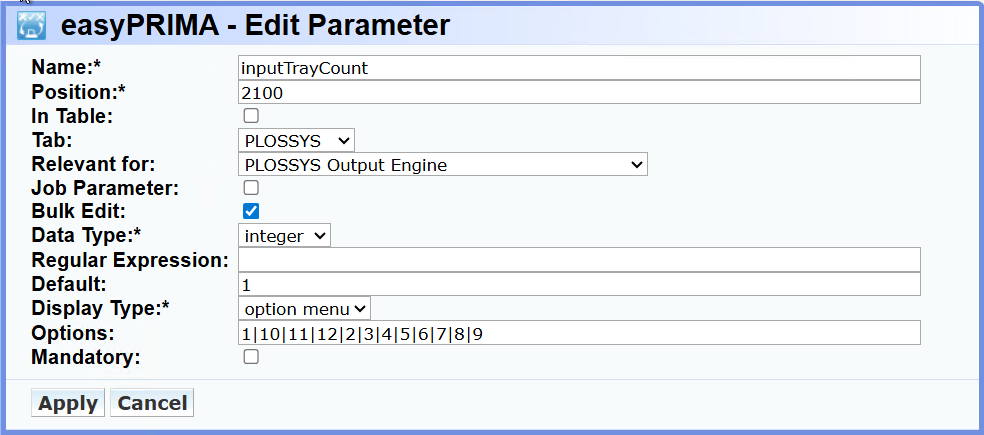
In easyPRIMA 1.12.0, no Output Engine queue parameter for the number of available trays is pre-configured. You have to configure the parameter inputTrayCount yourself.
-
Open easyPRIMA and select Manage Queue Parameters.
-
Click to add a new parameter.
-
Enter the following values:
- Name:
inputTrayCount - Tab:
PLOSSYS - Relevant for: PLOSSYS Output Engine
- Data Type:
integer - Default:
1 - Display Type:
option menu - Options:
1|10|11|12|2|3|4|5|6|7|8|9
- Name:
-
Select
Applyto save the parameter. -
The new parameter is visible in the edit queue dialogue as
INPUTTRAYCOUNT.
Add Queue as Printer in Windows
-
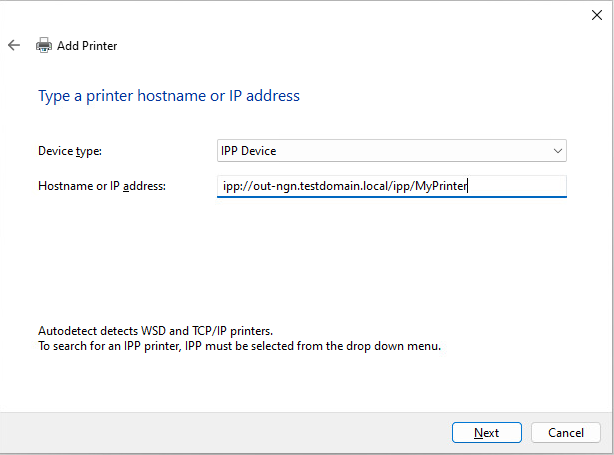
On the Windows client, manually add a printer and select the option
Add a printer using an IP address or hostname.Device type:IPP DeviceHostname or IP address:ipp:/<URL>/ipp/<printername>
Whereas the following values have to be used:
<URL>: URL or IP address of the Output Engine server; if the queue has its own port, the port has to be included<printername>: name of the queue as shown in PLOSSYS Administrator
Hint - misconfiguration
Printer problems may be caused by a wrong configuration. Available queues and their names can be seen in PLOSSYS Administrator.
-
When printing, the printer capabilities are accessible via
Additional settingsin the print dialogue, for example the options for stapling and punching. If multiple trays are configured for a printer the target tray can be selected in the print dialogue.
Advanced Configuration
Roll Formats
Windows does not support roll formats. Therefore, seal-ipp-checkin reports roll formats from PPD files to Windows with a fixed length. By default, the length is 3250 millimeters, the maximum length the Windows print dialogue can process.
To change the length for all printers, set the environment key ROLL_FORMAT_LENGTH. To change it for a single printer, set the printer key rollFormatLength.
DEFAULT_PRINTER_PAUSED_STATE
In PLOSSYS Output Engine, a pickup queue is permanently in paused state because print jobs are waiting to be picked up at a printer. By default, a paused printer is reported to Windows as stopped. This results in error messages when sending jobs to an IPP pickup queue. To prevent that error message you can adjust the mapping of the paused printer state.
Hint - global setting
If all your queues are pickup queues, use the environment key DEFAULT_PRINTER_PAUSED_STATE to change the mapping globally.
Hint - easyPRIMA support
As of easyPRIMA 1.12.0, the parameter printerPausedState is not supported yet. To set the parameter for a single queue, you have to edit the printer configuration file instead.
This is how you map the printer status for a single queue:
-
On the Output Engine server, export the queue configuration to a YAML file.
plossys printer export <printer_config_file>.yml <printer_name> -
Edit the YAML file and add the following lines to the configuration:
ipp:
    printerPausedState: 'idle'
The result should look like this:
Example - mapping the pause printer state for a pickup queue
- printer: pickup connection: 'socket://printer1:9100' finisher: - STAPLE inputTrayCount: 2 ipp: printerPausedState: 'idle' -
Save the file and validate it:
plossys printer validate <printer_config_file>.yml -
Re-import the changed configuration file:
plossys printer import <printer_config_file>.yml -
As result, the paused pickup queue is reported to Windows as idle. No faulty error messages should occur when sending jobs to the queue.
REMOVE_WINDOWS_DOMAIN_FROM_USERNAME
If jobs contain the username including the Windows domain, set REMOVE_WINDOWS_DOMAIN_FROM_USERNAME for the ipp-checkin service to true to remove the domain name from the value.